SOTA Scout

SOTA Scout is a desktop app for chasing SOTA and POTA activators using the popular digital modes FT8 and FT4. It bridges data from spotter APIs with remote control of the WSJT-X application, to help you locate and work activators in the vast sea of FT8 messages.
By providing a clear control panel that correlates SOTA and POTA spots with what you're actually able to hear on-air, SOTA Scout makes chasing digital activators fun instead of frustrating.
SOTA Scout communicates with WSJT-X using UDP, so you can run the two apps on different computers (they do need to be on the same local area network however).
Features
- Displays a list of all spotted DATA mode SOTA/POTA activators
- Plays alert sounds to aid in chasing (ships with a curated set of default sounds, or select your own sound files)
- Selecting an activator shows a detail view of their location, spot info, and transmission history
- The selected activator is automatically linked to the DX Call in WSJT-X, and vice-versa
- If an activator has sent a CQ message, a REPLY CQ button allows one-click chasing
- Adds visual highlights to spotted activators' callsigns in WSJT-X's Band Activity window
- For SOTA, when you log a QSO in WSJT-X, SOTA Scout will offer to save an ADIF file that includes the summit data, ready for uploading to sotadata.org.uk (POTA hunters don't upload logs, so ADIF export is not offered for POTA)
Downloads
Current version: v0.92
Tested with WSJT-X 2.x. Not yet tested with WSJT-X 3.
Setup
- In the SOTA Scout Settings window, enter your callsign and your latitude/longitude.
- In WSJT-X, open Settings > Reporting, and under the “UDP Server” section, set it up like this:

The IP address 224.0.0.1 is for multicast, and yes you can change that but it needs to match the UDP address in SOTA Scout's settings. The options for the "Outgoing interface" may be different on your system – just choose whichever network interface will get you onto the local wifi network. - In order to enable one-click CQ replies in SOTA Scout, you must check the box for "Double-click on call sets Tx enable" in WSJT-X Settings > General
Screenshots
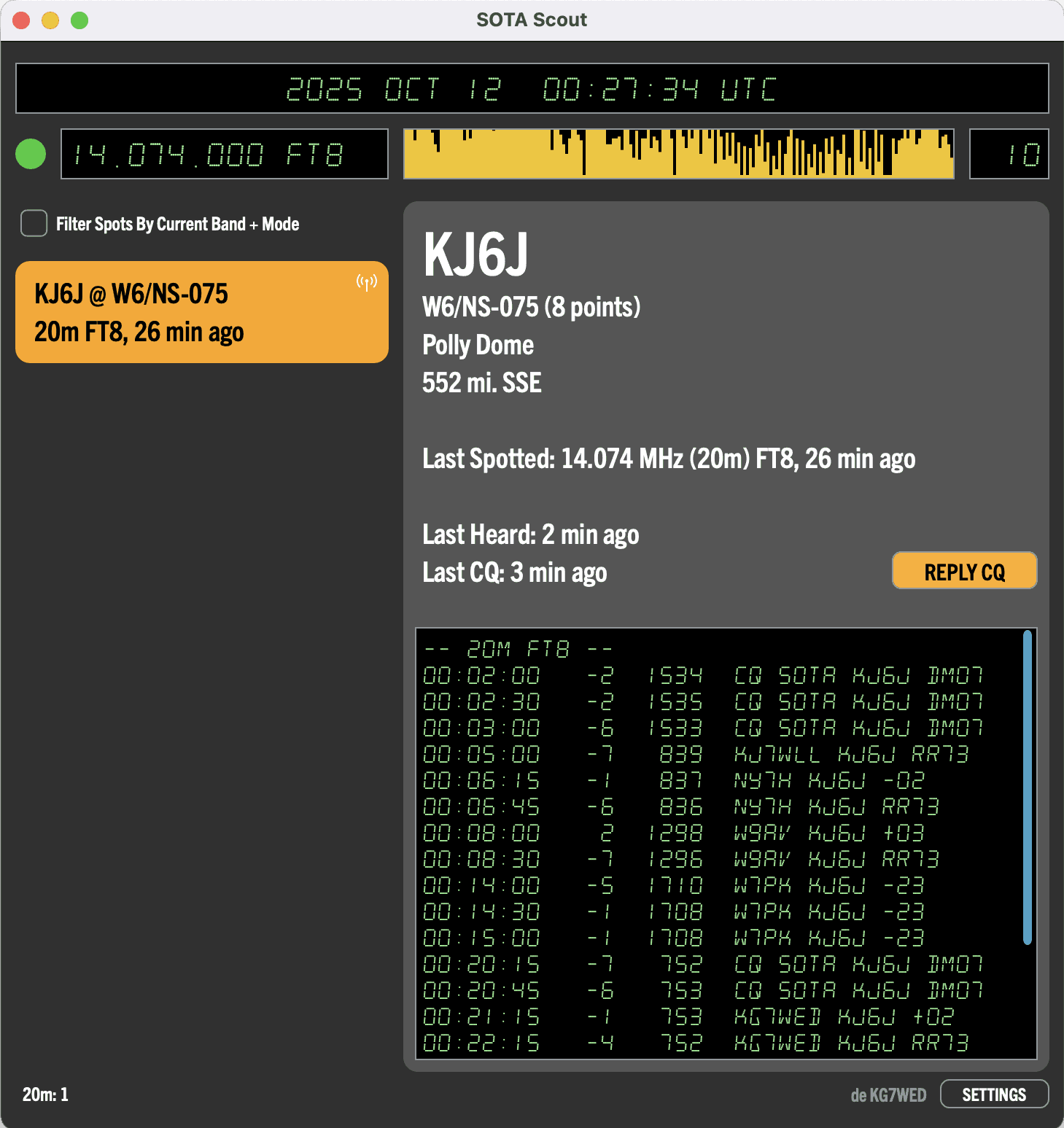
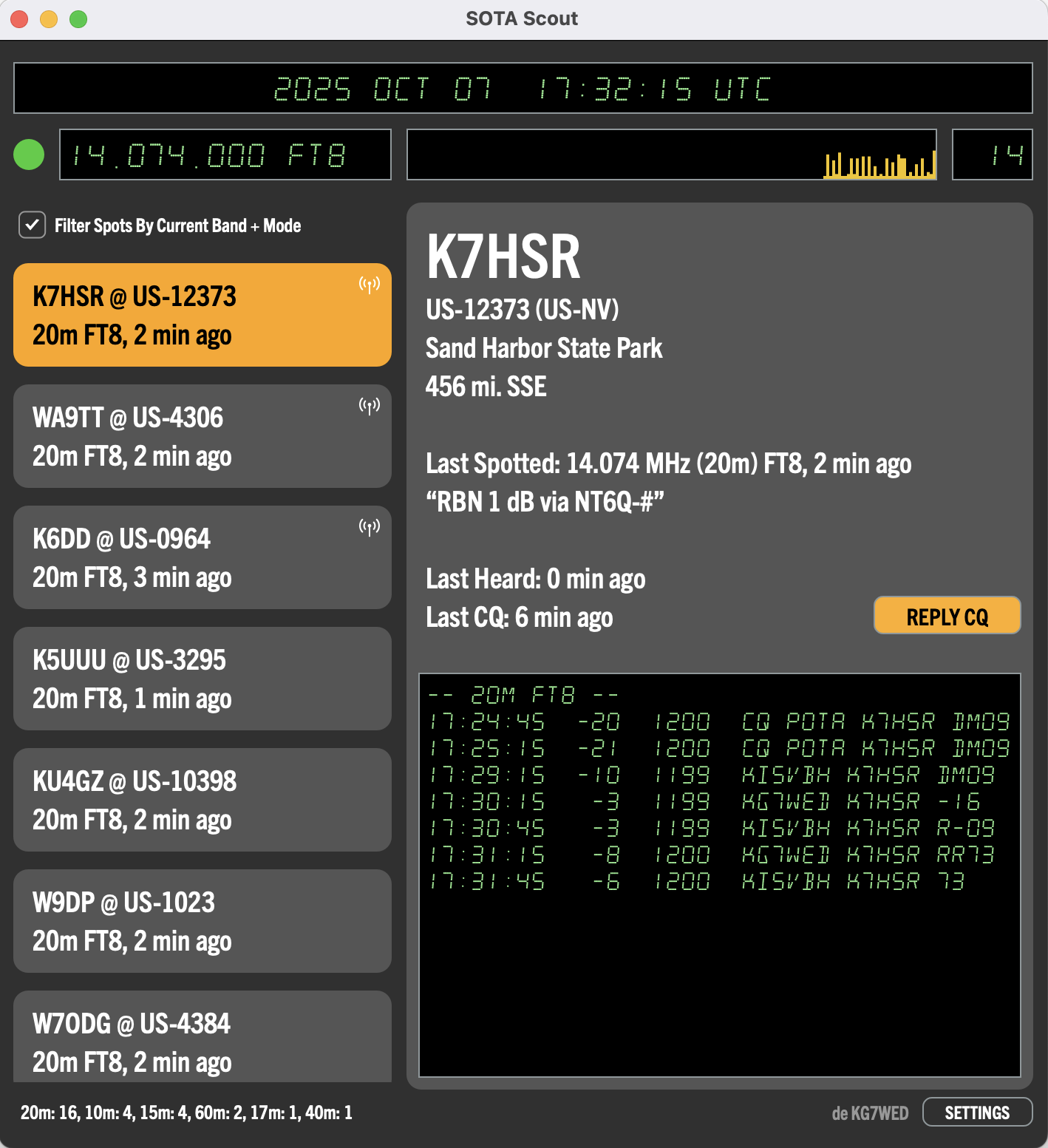
Known Issues
- The font embedded in the app does not have a comprehensive extended character set, so non-Latin characters in park names will either be garbled or simply blank. The solution would be to find a font with an extended character set, or get a font fallback scheme working so that a system font with the needed characters could be substituted instead in those cases.
- There can be a lag when initially launching SOTA Scout before it shows the radio status information. During that time period, the app is waiting for a Status update from WSJT-X – and in a bit of a Catch-22 situation, it cannot prompt WSJT-X for that update because it does not yet know the ephemeral port number that it can use to talk to WSJT-X. So it just has to wait to hear from WSJT-X for that first time. The duration of this wait won't be longer than the length of a decode cycle.
There can be a lag between clicking on an activator card in SOTA Scout and seeing the activator detail change. This is due to the control loop between SOTA Scout and WSJT-X. When you click on an activator card in SOTA Scout, all it does is send a command to WSJT-X telling it to make that activator's callsign the new DX Call value. Then, in turn, when SOTA Scout sees that WSJT-X has set a new DX Call, it uses that call to set its selected activator.
This enables you to select *any* callsign in WSJT-X (e.g. by double clicking on a message from that call) and have their info appear in SOTA Scout, even if they are not a spotted SOTA or POTA activator. (In that case, their message history will be displayed in SOTA Scout, but there won't be any detailed location information.)
This lag is typically caused by WSJT-X being slow to respond, which can happen when it is displaying thousands of messages in its Band Activity window. One way to fix this lag is to double-click the Erase button in WSJT-X, to clear both windows. Also note that SOTA Scout offers an option in its WSJT-X Behavior Settings, to Auto Erase on Freq Change. As the name suggests, this will automatically command WSJT-X to clear both the Band Activity and Rx Frequency windows when changing frequencies.
Contact
Send QSL or inquiries to kg7wed at zuluhour dot com